Layout
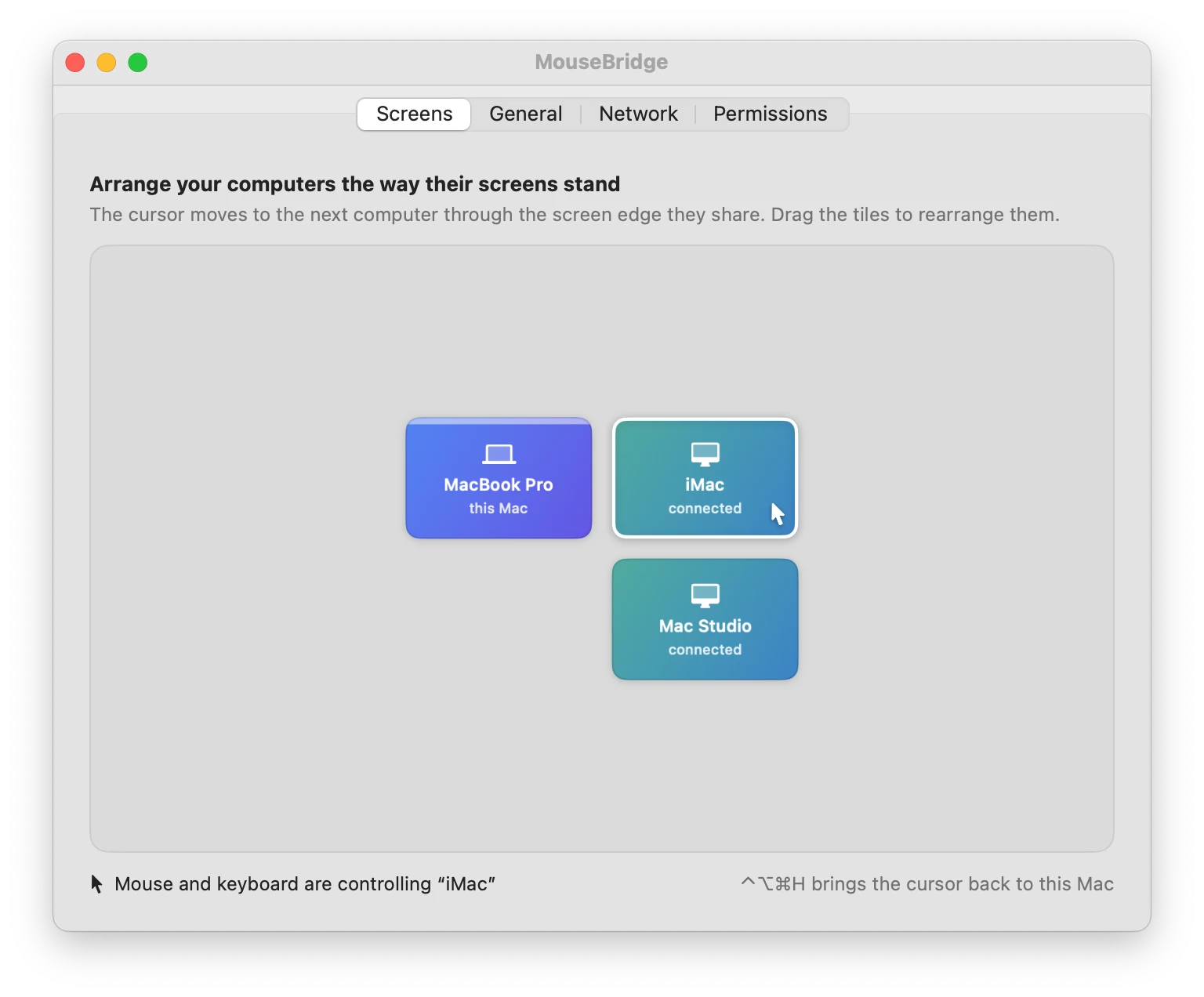
Arrange your Macs the way they sit on your desk
Drag each computer next to the others — left, right, above or below. The cursor travels through the edges they share, and the layout syncs to every Mac by itself.
Software KVM for macOS
Push the cursor past the edge of your screen and it lands on the next Mac, with the keyboard, the clipboard and your copied files right behind it. No cables, no switch box, no shared Apple ID — just your network.
Apple silicon and Intel · Unsigned beta: see how to open it
MacBook Pro
iMac
MouseBridge sits in the menu bar of each Mac. Set it up once and forget it's there: the cursor simply keeps going when you reach the edge.
Layout
Drag each computer next to the others — left, right, above or below. The cursor travels through the edges they share, and the layout syncs to every Mac by itself.
Discovery
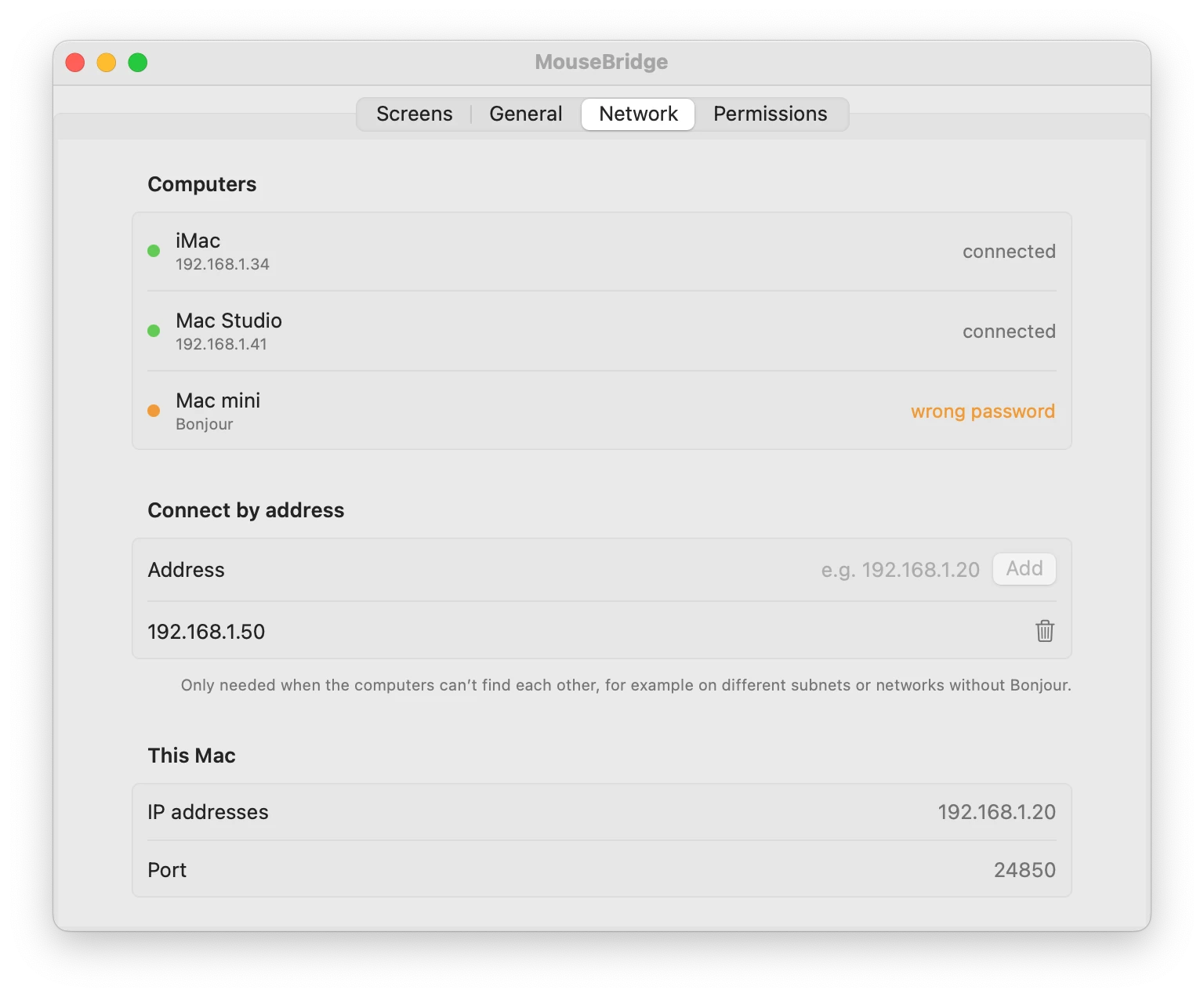
Open MouseBridge on each Mac with the same password and they connect over Bonjour within seconds. On office networks that block discovery, add a Mac by its IP address.
Privacy
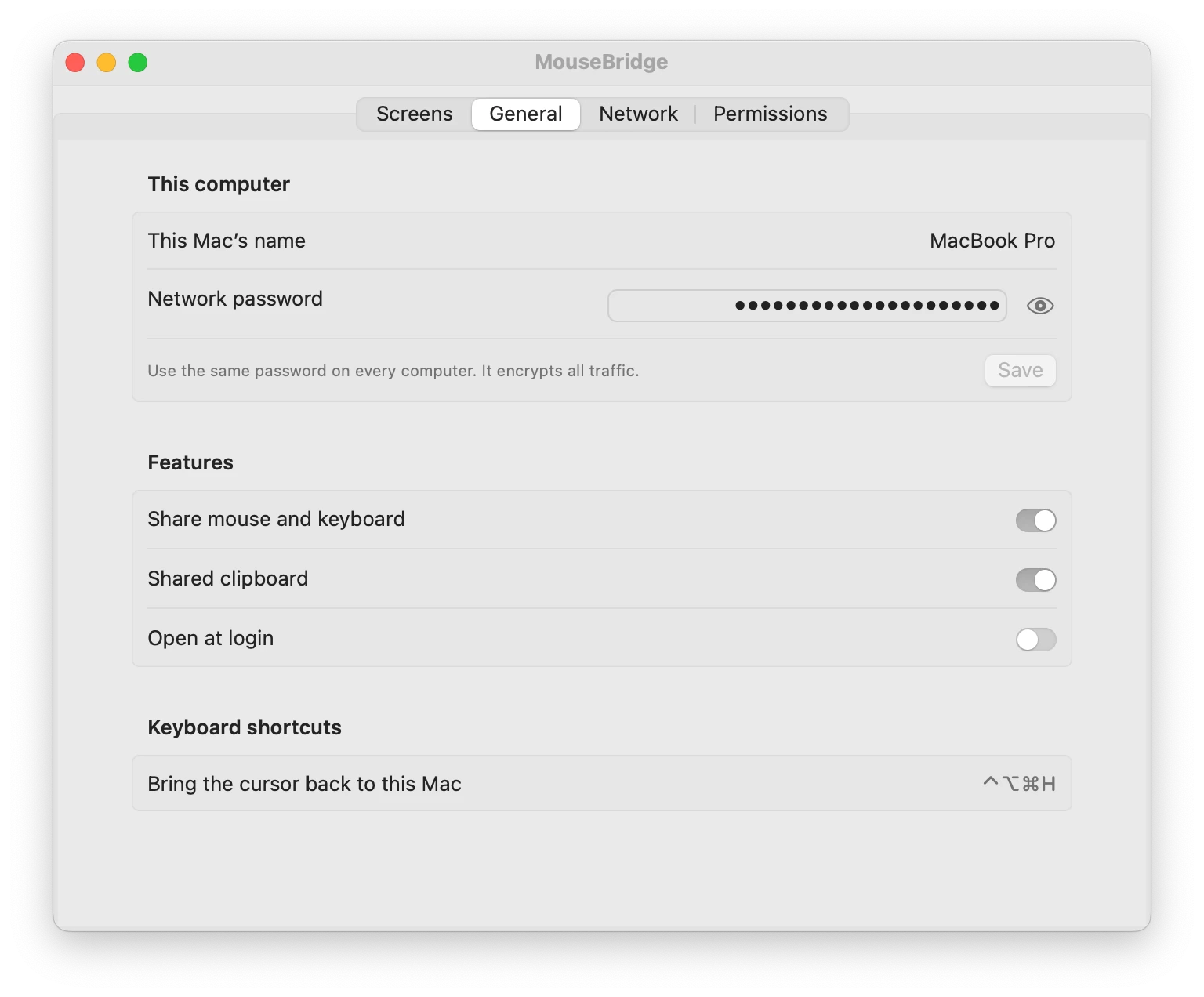
The network password never leaves your Macs. Every connection gets fresh keys (X25519 and ChaCha20-Poly1305), so nobody on your Wi-Fi can read or replay what you type — and a Mac without the password can't connect.
Whatever Mac the cursor is on gets your input, exactly as if you were sitting at it.
Mouse
Double-clicks, dragging and ⌘-clicks land where you point, with the modifier keys you hold.
Scrolling
Two-finger scrolling keeps its momentum on the other Mac, and mouse wheels scroll line by line.
Keyboard
Keyboard shortcuts, key repeat, volume and playback keys go to the Mac the cursor is on.
Clipboard
Text, links and images follow the clipboard, and so do files: copy in Finder on one Mac, paste in Finder on another, up to 4 GB.
Displays
A Mac with an external display counts as one desk; the cursor crosses only at its outer edges.
Safety net
⌃⌥⌘H brings it back at any time, and if a Mac stops answering, the cursor returns by itself.
MouseBridge is a free beta distributed outside the Mac App Store and isn't notarized yet, so macOS asks you to confirm the first launch. Do this on every Mac you want to connect.
Step 1
Open MouseBridge.dmg and drag MouseBridge onto the Applications folder next to it.
Step 2
Open MouseBridge. When macOS says it can't verify it, click Done — not the highlighted Move to Trash — then open System Settings → Privacy & Security and click Open Anyway.
Step 3
Accessibility lets MouseBridge move the cursor and type; Local Network lets your Macs find each other.
Step 4
Type the same network password on each Mac, then drag the computers into place on the Screens tab.
AppHunt · Apps worth discovering
More premium apps. Less money spent. Discover developer-shared promo codes for paid apps and free subscription periods on AppHunt. Find something you love and unlock the offer in the App Store.
Selected offers only. Free periods, eligibility and renewal terms are shown with each offer. MouseBridge itself is free.
Apple's Universal Control is great when every device is yours and signed in to one Apple ID. MouseBridge covers the rest.
Apple ID
A work Mac and a personal Mac can share one keyboard. All MouseBridge needs is the same network password.
Network
No Bluetooth, Handoff or 10-meter range: Macs connect over your network, even across rooms or subnets.
Layout
Stack Macs above, below and beside each other on a grid, as many as your desk holds.
Weight
Written in Swift, a 2 MB download that lives in the menu bar. No account, no cloud, no telemetry.
Install MouseBridge on both Macs, give them the same network password, and allow Accessibility when asked. They find each other automatically; drag them into place on the Screens tab, then push the cursor past the shared edge.
Universal Control works between Macs and iPads signed in to the same Apple ID with Bluetooth, Wi-Fi and Handoff turned on. MouseBridge works between any Macs on the same network, whoever they belong to, and lets you arrange as many as you like.
Yes, for Macs. MouseBridge does the same job — one keyboard and mouse, a shared clipboard and a screen layout — for free, without an account, and encrypted by default.
This beta isn't notarized by Apple yet, so macOS asks you to confirm the first launch. In the warning, click Done (Move to Trash is the highlighted button, so don't just press Return), then open System Settings → Privacy & Security and click Open Anyway. After that it opens normally.
macOS only lets apps with Accessibility permission read and post mouse and keyboard events. MouseBridge uses it to take over the cursor at the screen edge and to replay your input on the Mac you're controlling. Nothing is recorded or sent anywhere else.
Yes. Copy files or folders in Finder on one Mac and paste them in Finder on another, up to 4 GB at a time. They travel over their own encrypted connection, so the mouse stays smooth while a big file is on its way.
Yes. Everything MouseBridge sends is encrypted with keys derived from your network password, with fresh keys for every connection. Computers without the password can't connect.
Any Mac with macOS 13 Ventura or later, Apple silicon or Intel. The Macs need to be on the same local network or reachable by IP address.
Press ⌃⌥⌘H on the keyboard you're using. Moving the other Mac's own mouse or trackpad also hands control back to it.
No. On the lock screen macOS only accepts that Mac's own keyboard. Unlock it there, then carry on with the shared one.
Not yet — MouseBridge connects Macs only.
Put MouseBridge on each Mac, choose one password, and push the cursor past the edge.